

Maximizer Beta program

You're invited

Meet the new Maximizer mobile app.

Maximizer Beta is an early release of our mobile app, rebuilt for iPhone, iPad and Android. It's faster, smoother and redesigned around how advisors work on the go. Install it, explore it, and tell us what you think before it reaches every customer.

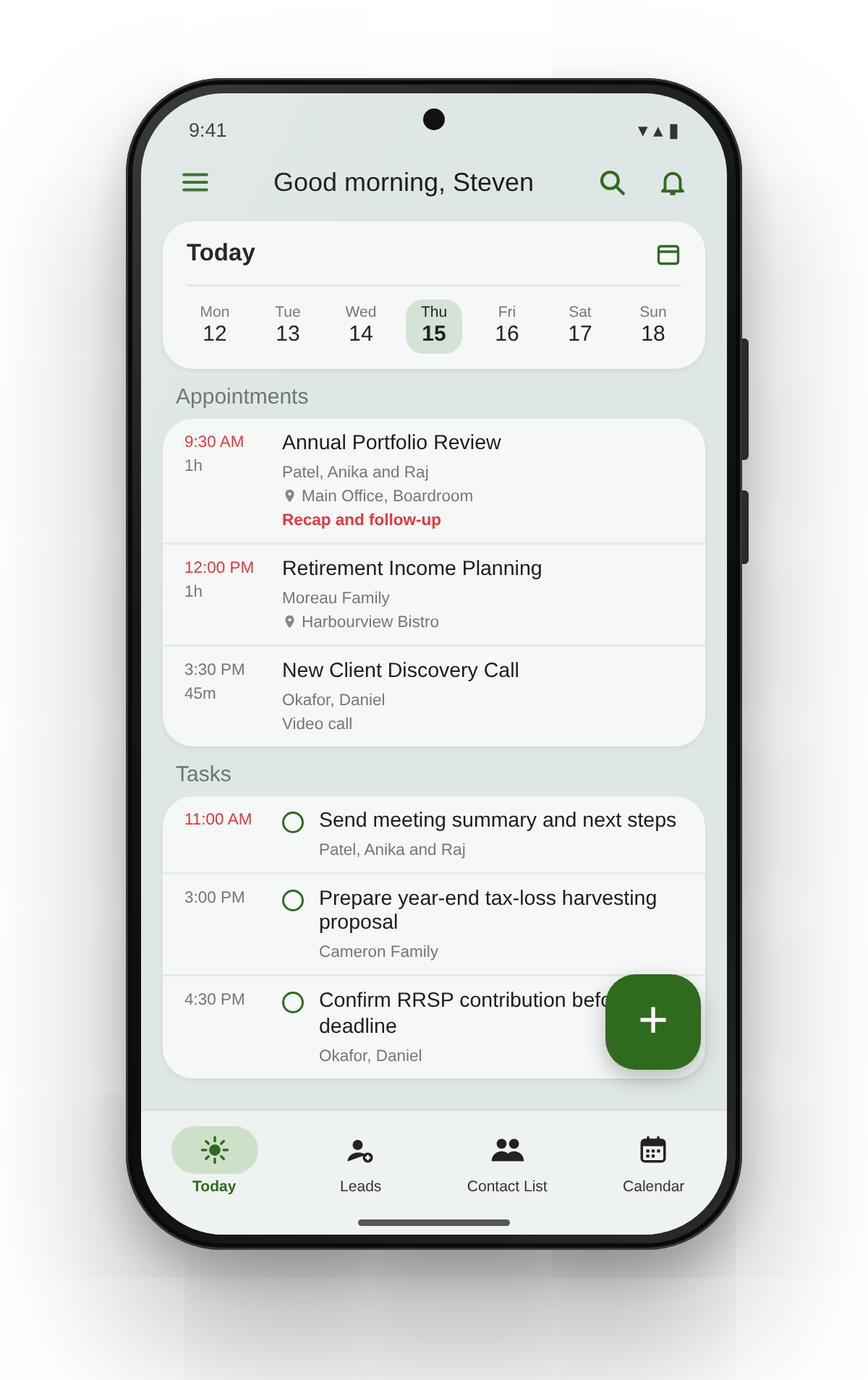
The Today screen of the new Maximizer app, showing the week, today's appointments and tasks

Before you start

Two things to have ready

Your Maximizer sign-inThe same username and password you use for Maximizer today. There is no separate beta account.
A supported Maximizer editionCloud customers are ready to go. On-premise customers must be on Maximizer 2023 or later.

Install the beta

Pick your device and follow the steps

Do these steps on the phone or tablet where you want to use the app.

iPhone and iPad

Installed through Apple TestFlight
  1. Install TestFlight

    TestFlight is Apple's free app for trying beta apps. Get it from the App Store.

  2. Open the Maximizer Beta link

    Tap the button below on your iPhone or iPad. It opens Maximizer Beta in TestFlight. No invitation is needed.

    Join Maximizer Beta
  3. Accept and install

    In TestFlight, tap Accept, then Install. Maximizer Beta appears on your home screen with an orange dot next to its name, which marks a beta app.

  4. Sign in

    Open Maximizer Beta and sign in with your usual Maximizer account.

Updates: TestFlight notifies you when a new beta build is ready. Turn on automatic updates in TestFlight so you always have the latest. Each build stops working 90 days after release, so keep updating.

Android phones and tablets

Installed from Google Play
  1. Open Maximizer Beta on Google Play

    Tap the button below on your Android device, or open the Play Store app and search for Maximizer Beta.

    Get it on Google Play
  2. Install the app

    Tap Install. Check that the publisher shown under the app name is Maximizer.

  3. Sign in

    Open Maximizer Beta and sign in with your usual Maximizer account.

Updates: New beta builds arrive through Google Play like any other app update. Keep auto-update on for Maximizer Beta to get fixes as soon as they ship.

What to try

Explore the redesigned app

Everything has been rebuilt. Spend some time in these areas and tell us what works and what gets in your way.

Much faster to load and search Smoother performance A cleaner, modern design New AI capabilities on the way

Today

Your day at a glance: this week's dates, today's appointments and the tasks due, with follow-ups flagged.

Contact List

Search, open and edit clients and contacts. Call, text, email or WhatsApp them and log the interaction in one step.

Leads and Opportunities

Work new leads and keep your pipeline current from anywhere, with the same edit and logging tools.

Client Service

Check open cases and their status so you can answer client questions before you walk into a meeting.

Tasks and Calendar

Stay on top of tasks, appointments and meetings. Your saved searches from the desktop app are available in every module.

Notes, Import Contact and Scan Card

Add notes by typing or with voice dictation from the mic button. Import a contact from your phone, or take a picture of a business card and Scan Card fills in a new lead for you.

Record Conversation

Record in-person meetings with your clients in a single click. Requires enablement in the AI Hub by your system administrator.

Coming soon

AI capabilities

Focus on your clients. Let Maximizer handle the notes.

Conversation recording for in-person meetings

Record a face-to-face client meeting from your phone and let Maximizer capture the conversation for you, so you can stay present with the client instead of taking notes.

  • Built for meetings at your office, the client's home or over lunch
  • Follow your firm's policy on client consent before you record

Smart Capture

Scan Card, taken further. Take a picture and Smart Capture pulls out the details for you. It appears in the app's quick menu once your admin enables it in the AI Hub.

  • Turn handwritten meeting notes into digital notes saved to the right contact
  • Create new leads or contacts from a document, a LinkedIn profile or any other source
  • Update the fields on existing Maximizer records without retyping

For your system administrator

Turn on meeting recording and Smart Capture

  • Maximizer web app
  • ›
  • AI Hub
  • ›
  • Tools tab
  • ›
  • Meetings
  • +
  • Smart Capture
  1. Sign in to the Maximizer web app

    Use an account with system administrator rights.

  2. Open the AI Hub

    Go to the AI Hub and select the Tools tab.

  3. Enable the capabilities your team needs

    Turn on the Meetings toggle for conversation recording, and the Smart Capture toggle for quick note digitalization or client info import.

Not sure who your administrator is? Ask the person who manages Maximizer users and licences at your firm.

Share feedback

You're shaping what ships

The Maximizer product team reads every message. Bugs, confusing screens, missing features and things you like all help us decide what to change to ensure the best experience.

What to include

  • What you were doing, for example "logging a call from a contact's timeline"
  • What you expected to happen, and what happened instead
  • What you'd like to have that you couldn't find in the app
  • A screenshot or screen recording if you can, plus your device model

In the app

Open the main menu and tap Feedback. It's the quickest way to reach us without leaving the app.

By email

Write to the mobile team directly.

Questions

If something doesn't work

I can't sign in

Use the same username and password as your Maximizer web or desktop app. On-premise customers need Maximizer 2023 or later. If you still can't get in, email mobile@maximizer.com with the time you tried and any error message you saw.

The TestFlight invitation says it's expired or full

TestFlight invitations can expire or reach their tester limit. Email mobile@maximizer.com and we'll send you a new one.

I don't see Meeting Recording or Smart Capture

AI features appear only after your system administrator enables them in the AI Hub, and some are still rolling out to the beta. If your admin has turned them on and you still don't see them, sign out of the app, sign back in and make sure you have the latest beta build.

Will the beta change my data?

The beta works with your live Maximizer data, just like the current app. Anything you add or edit is saved to your Maximizer database, so treat it as you would any other Maximizer app.